

 By
By Introduction
If you’re facing lines on your iPhone’s screen, it can disrupt daily usage and cause frustration. Addressing this quickly is crucial. This comprehensive guide will help you understand why these screen lines occur and how to fix them effectively, targeting both software and hardware issues.
Understanding Why Lines Appear on Your iPhone Screen
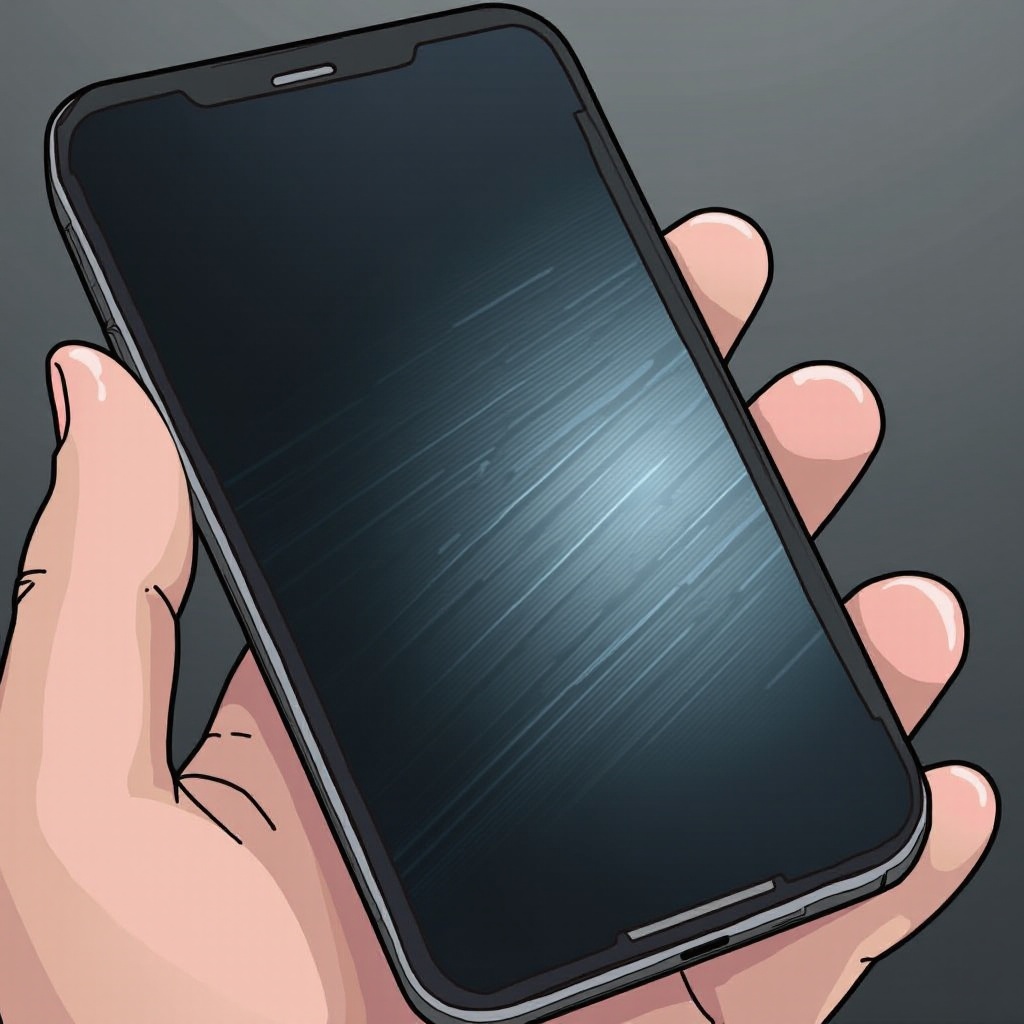
Lines may appear on your iPhone screen for several reasons, and identifying the cause is key to finding a resolution.
Common Causes of Screen Lines:
Display lines often result from software glitches, physical damage, or loose display connections. Software bugs might cause erratic screen behavior, while accidental drops may physically damage the display. Additionally, if the internal connection between the display and device components becomes shaky, it could manifest as lines on the screen.
Impact on Device Functionality:
These screen lines can severely impair the functionality of your iPhone. You might face issues with touch responsiveness or screen readability, complicating basic operations like making calls or browsing apps. Recognizing the symptoms early on helps prevent further complications.
Understanding these causes aids in navigating potential solutions, whether they are quick fixes or require assistance from professionals.
Preliminary Checks
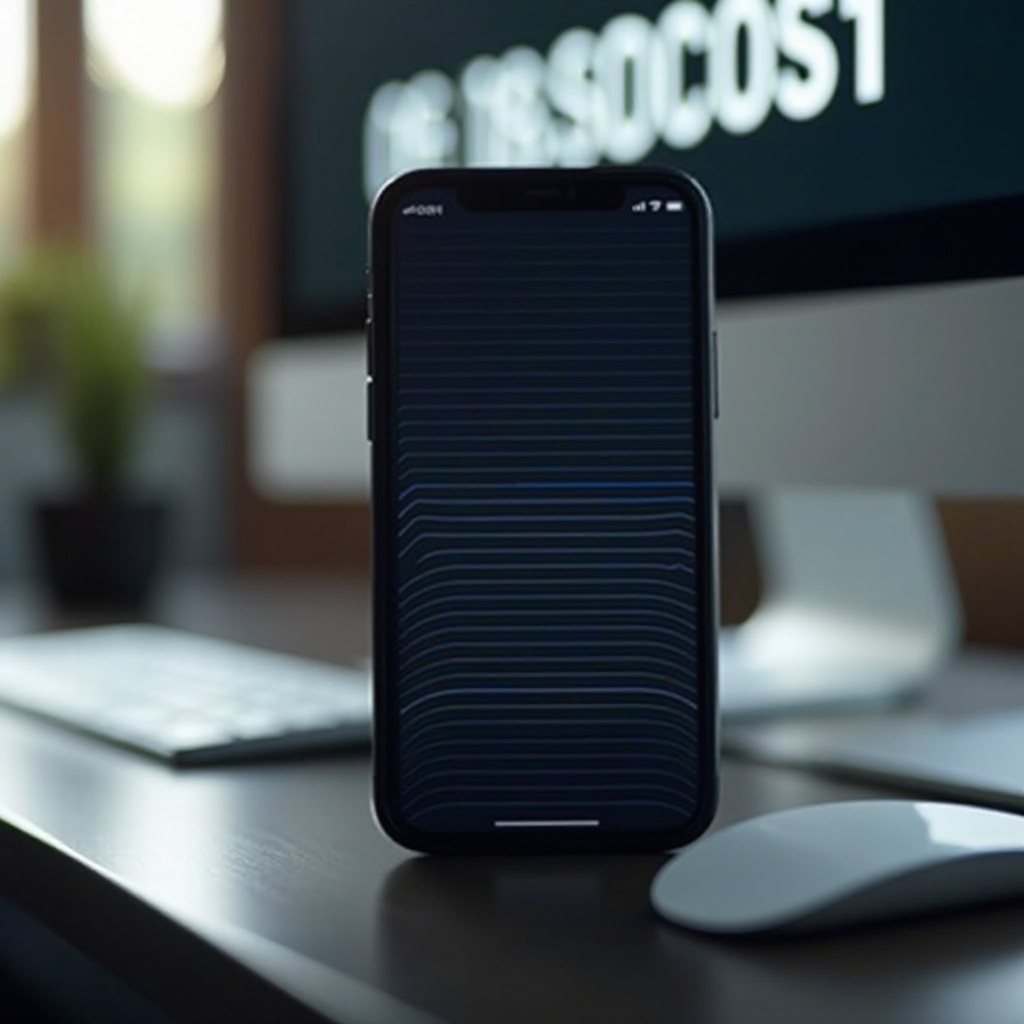
Before diving into extensive troubleshooting, start with some basic checks which may resolve the screen line issue effortlessly.
Remove Screen Protectors and Cases:
Sometimes, accessories such as screen protectors or cases can cause or exacerbate screen issues. Remove them to see if the lines disappear. External pressure or interference from these items might be at fault.
Clean Your iPhone Screen:
Grime and dust often affect the screen’s appearance. Clean your device using a microfiber cloth and a bit of cleaning solution suitable for electronics. Ensuring the screen is smudge-free helps you better diagnose the problem.
These simple steps should be your first line of action. If the issue persists, you may need to explore software solutions next.
Software Solutions
If lines remain after preliminary checks, they may be due to software glitches. Tackling these issues can often rectify the problem without requiring professional repair.
Restart Your iPhone:
A basic restart can eliminate many software hiccups. Hold the power button and a volume button until the power slider appears, then slide to power off. After a few seconds, start your device again.
Update iOS Software:
Running the latest iOS version can resolve known bugs. Navigate to Settings > General > Software Update to check for updates. If available, download and install it; updates frequently contain bug fixes that improve device performance.
Reset All Settings:
If issues persist, consider resetting all settings. This action restores defaults without erasing data. Head to Settings > General > Reset > Reset All Settings. This could rectify underlying software errors causing screen lines.
Restore iPhone to Factory Settings:
As a last resort, perform a factory reset after backing up your data. Go to Settings > General > Reset > Erase All Content and Settings. This step eliminates persistent software problems by wiping your device clean, though it does erase all personal data.
When software solutions are ineffective, hardware checks come next.
Diagnosing and Checking for Hardware Issues
If screen lines linger despite software remedies, hardware malfunctions might be at play. Here’s how to address them.
Inspect for Physical Damage:
Examine the iPhone for visible damage. Cracks or dents can lead to screen malfunctions, including lines, and may necessitate professional repair if internal components are affected.
Reconnecting Loose Display Cables:
Loose connections inside the iPhone can cause lines on the screen. Attempting to fix this yourself might risk further damage unless you have technical expertise, so professional repair is advised.
If the hardware appears faulty or beyond personal repair, the next step is to contact Apple Support for specialized assistance.
When to Contact Apple Support
If the problem remains unresolved, it might be time to seek professional help from Apple Support.
Seeking Professional Repair for Persistent Issues:
Visit an authorized Apple service provider for an assessment. Professionals can offer diagnostics and repair solutions tailored to your device’s specific needs.
Understanding Warranty and Repair Options:
Check the warranty status of your iPhone. Repairs might be covered under AppleCare+ or your existing warranty. Exploring these options can help manage repair costs effectively.
Utilizing professional repair services can ensure that your iPhone is restored to working order efficiently.
Conclusion
Dealing with screen lines on your iPhone need not be a major headache. By following this guide, you have various solutions at your disposal. Whether it’s through software troubleshooting, evaluating hardware, or seeking professional help, addressing these issues promptly will prevent further disruptions to your device’s functionality.
Frequently Asked Questions
What should I do if lines reappear after a software update?
Try performing a restart or reset all settings. If the issue persists, consider visiting an Apple service center for assistance.
Can a screen protector cause lines on my iPhone screen?
A misaligned or damaged screen protector can sometimes create visual artifacts. Remove it to see if the lines disappear.
Is it safe to perform a factory reset on my iPhone?
Yes, but ensure you back up all important data beforehand. A factory reset is a good solution for persistent software issues.