

 By
By Introduction
Experiencing HDMI issues with your Xbox 360 can be frustrating, especially when you’re ready to immerse yourself in gaming. These problems often arise unexpectedly, disrupting seamless gameplay. Fortunately, this guide provides clear strategies to resolve these HDMI connection problems, enabling you to restore the vibrant display you expect from your gaming console.
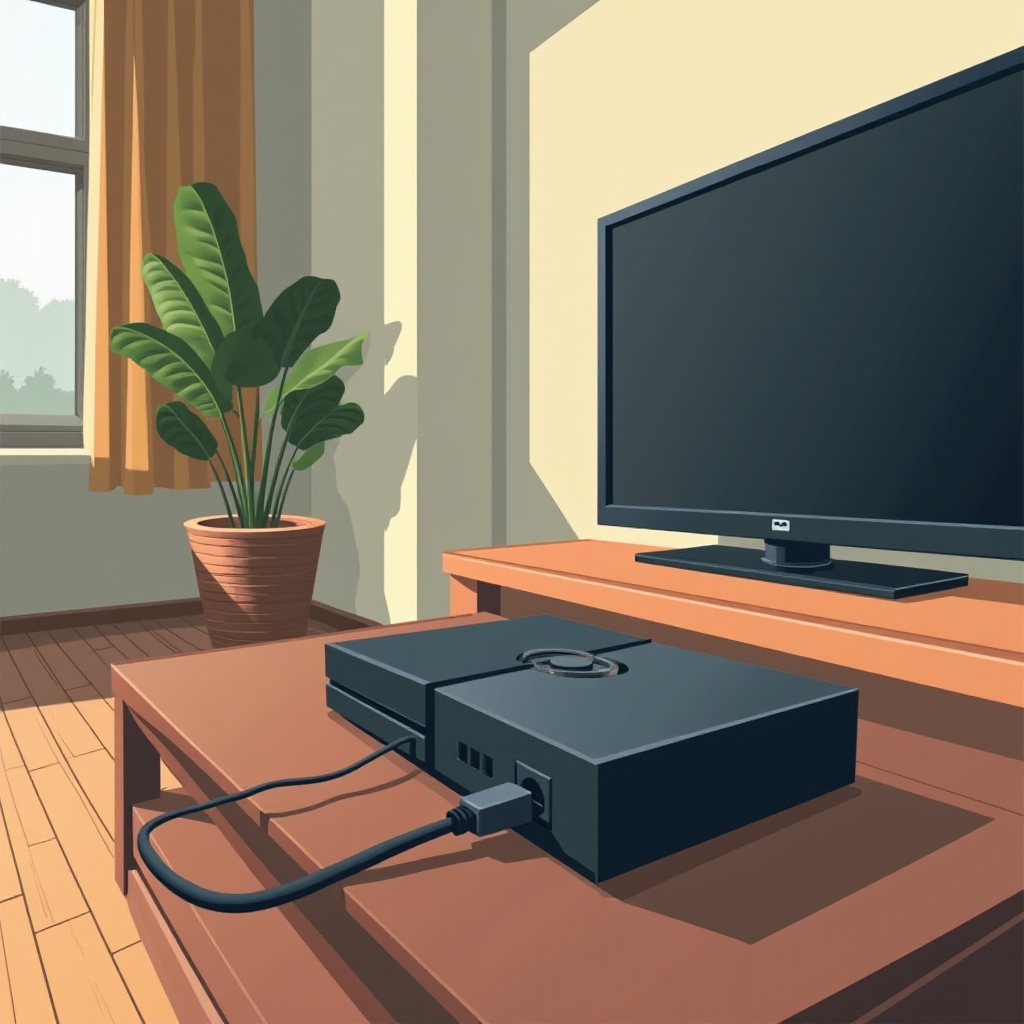
Common Causes of HDMI Issues
Understanding why HDMI problems occur can make fixing them much easier. The following are common reasons for HDMI issues:
-
Faulty HDMI Cables: Damaged or low-quality cables often fail to transmit signals properly, causing disruptions.
-
HDMI Port Damage: HDMI ports on your Xbox 360 or TV can suffer from wear or physical damage, affecting connectivity.
-
Console Settings Misconfiguration: Improper settings may prevent the correct output of video signals via HDMI.
-
Outdated Console Firmware: Running old firmware can sometimes result in compatibility issues with modern displays.
Identifying the root cause is the first step toward an effective solution. With these causes in mind, we now move to specific troubleshooting actions.
Step-by-Step Troubleshooting Guide
To efficiently resolve HDMI issues on your Xbox 360, follow these detailed steps:
- Inspect and Replace HDMI Cables:
- Unplug the HDMI cable and check for visible wear.
-
Replace it with a new or known working cable to see if the issue resolves.
-
Check HDMI Ports on Xbox and TV:
- Examine the HDMI ports for any dust, debris, or physical damage.
-
If possible, test different ports on your TV to find one that works.
-
Adjust Xbox 360 Display Settings:
- Access ‘Settings’ on your console, then go to ‘Display’.
-
Confirm that the display settings correspond with your TV’s native resolution.
-
Reset the Console:
- Turn off your Xbox 360 completely by holding the power button.
- Disconnect all cables, wait a moment, then reconnect and reboot the system.
After completing these steps, evaluate your display to see if the problem persists. If you still encounter issues, proceed to explore alternative solutions.
Alternative Solutions and Temporary Fixes
If initial troubleshooting doesn’t fix the problem, these alternative solutions might help keep you gaming:
-
Using Component Cables: Alternative to HDMI, these can be a suitable short-term option to maintain video output.
-
Testing with Another TV or Monitor: Doing so helps determine if the issue lies with the original TV.
-
Utilizing AV Connection Options: AV cables can temporarily substitute HDMI, ensuring your gaming isn’t completely halted.
Should these options prove ineffective, more advanced solutions may be necessary, which we discuss next.
Advanced Fixes and Professional Help
For unyielding HDMI issues, consider deeper solutions or expert assistance:
-
Updating Console Firmware: Ensure your console runs the latest firmware. Navigate to ‘Settings’, proceed to ‘System’, and choose ‘Update Console’.
-
When to Seek Professional Repair Services: If your attempts fail, a hardware problem could exist, requiring professional evaluation and repair.
Ensuring your console runs smoothly also involves preventive measures against recurring HDMI problems.
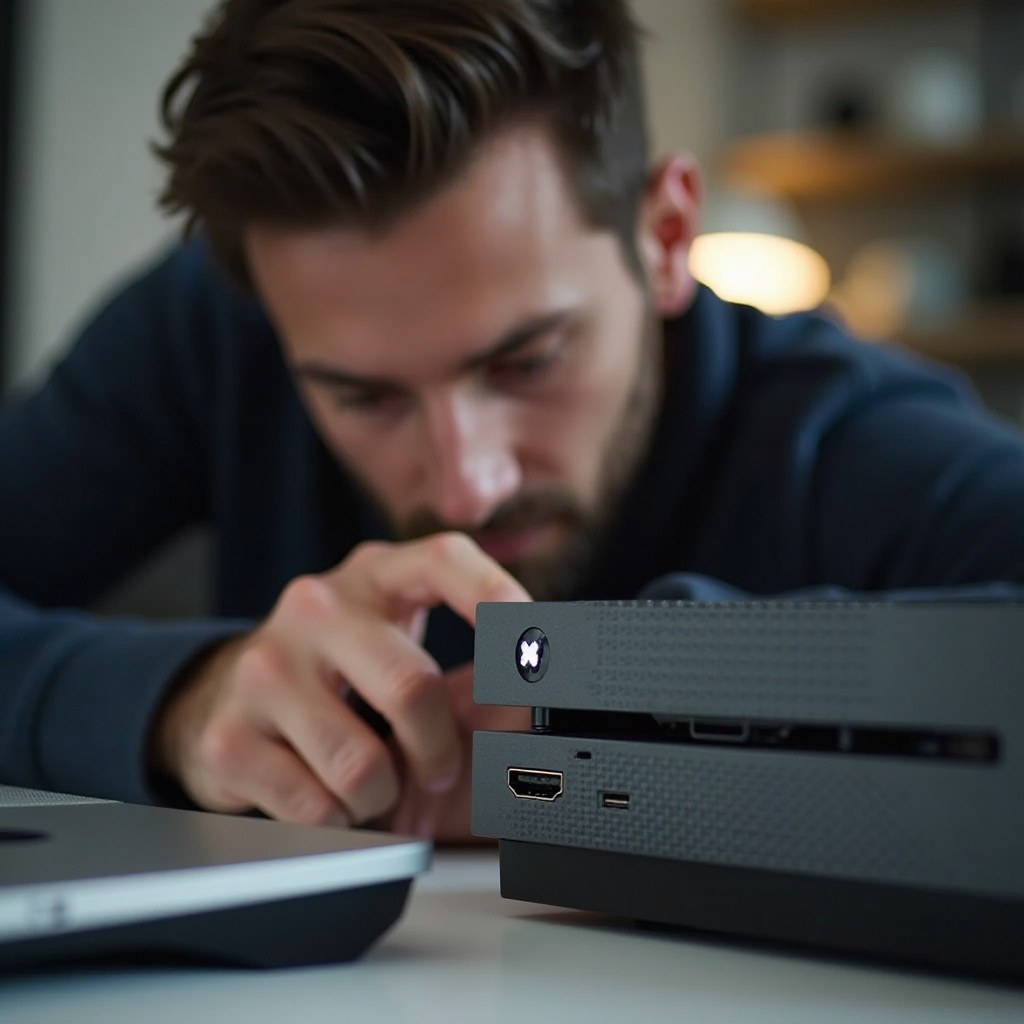
Preventive Measures for HDMI Issues
Preventing future HDMI problems involves regular checks and mindful usage:
-
Proper Cable Management and Handling: Regularly inspect and store cables carefully to avoid damage.
-
Regular Maintenance and Software Updates: Keeping the Xbox 360’s software up to date and performing maintenance checks can prevent issues and keep your console running efficiently.
Taking these precautions will help in maintaining HDMI functionality and reliability in your Xbox 360 experience.
Conclusion
By following this comprehensive guide, you can effectively troubleshoot and resolve HDMI issues with your Xbox 360. Regular maintenance and prompt updates can prolong your console’s life, ensuring uninterrupted gaming adventures. Should problems persist, professional support remains a viable option to explore.
Frequently Asked Questions
How can I tell if my HDMI port is damaged?
A damaged HDMI port may feel loose, or you might see bent pins. Testing different cables and devices can further confirm the issue.
What are alternative connection options if HDMI fails?
Using component or AV cables can offer a temporary solution, ensuring your gaming continues uninterrupted until HDMI is restored.
When should I consider upgrading my Xbox 360?
Consider upgrading if HDMI issues persist despite troubleshooting, or if your console frequently struggles with newer game releases.