

 By
By Introduction
Brother printers are highly regarded for their performance and reliability, yet they are not immune to occasional issues. Connectivity problems, unexpected print quality declines, and confusing error messages are challenges many users face. Being equipped with the knowledge of how to address these problems can save you both time and frustration. This guide offers a step-by-step approach to resolving common printer issues while also providing tips on maintaining your Brother printer’s health.
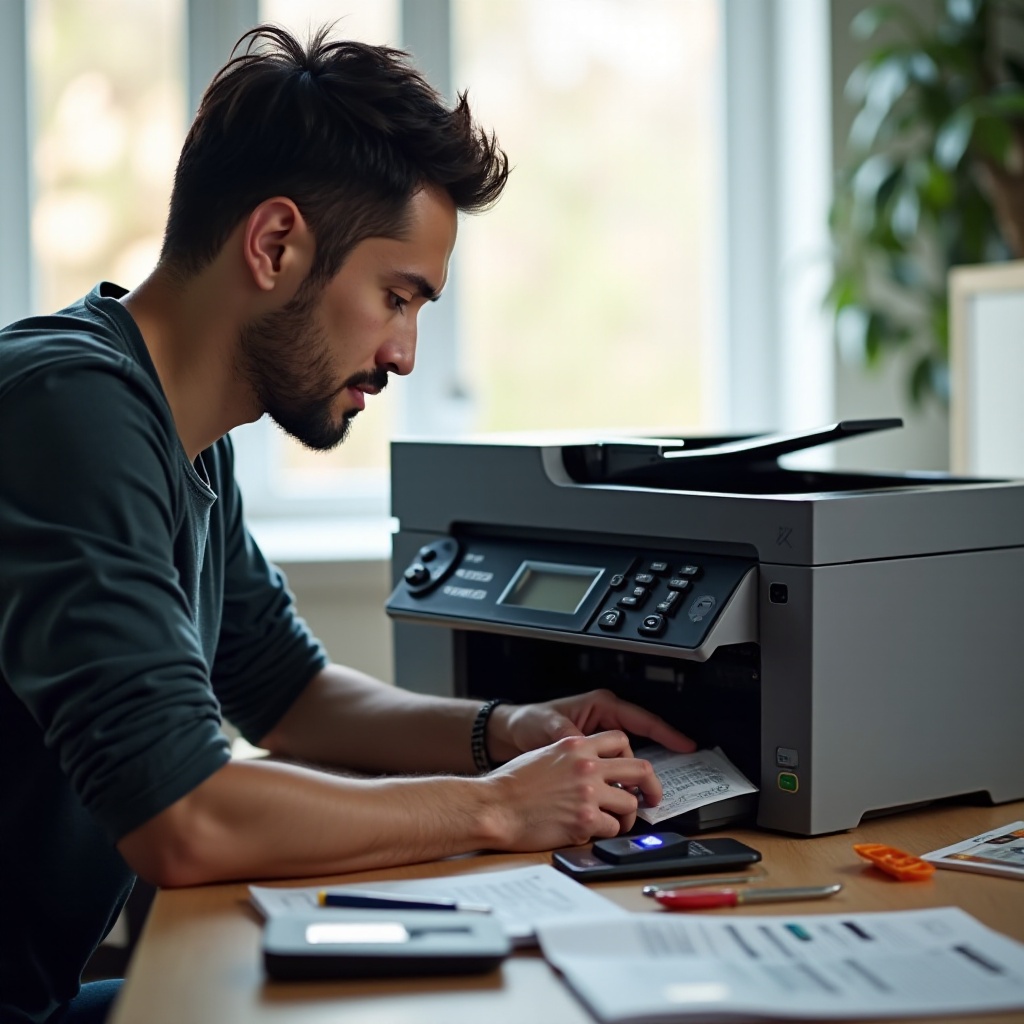
Check the Basics
Establish a solid foundation for troubleshooting by ensuring that your Brother printer is properly connected and ready for use.
- Verify Power Supply and Connections: Make sure that your printer is plugged into a functioning power source and that all necessary cables are securely connected. It’s often the simplest fixes that resolve major issues.
- Ensure the Printer is Set as Default: Access your computer’s control panel or settings to check that your Brother printer is set as the default printer. This prevents print tasks from being sent to the wrong device.
Once you’ve confirmed the basic setup, you can address more specific problems like paper jams and print quality.
Resolving Paper Jams
Paper jams can disrupt your workflow and potentially damage the printer if not handled correctly. Here’s what to do:
- Identify Paper Jams: If a paper jam error appears on your printer’s display, check areas like the paper tray, front panel, and back access panel for obstructions.
- Steps to Remove Paper Jams:
- Turn off and unplug the printer to ensure safety.
- Open all accessible panels and gently remove any jammed paper.
- Be careful to avoid tearing the paper to prevent leaving fragments inside.
- Tips to Prevent Paper Jams: Utilize smooth, high-quality paper and avoid overloading the paper tray. Regular maintenance checks can also help prevent jams from occurring.
After resolving any paper jam issues, let’s focus on enhancing the print quality of your documents.
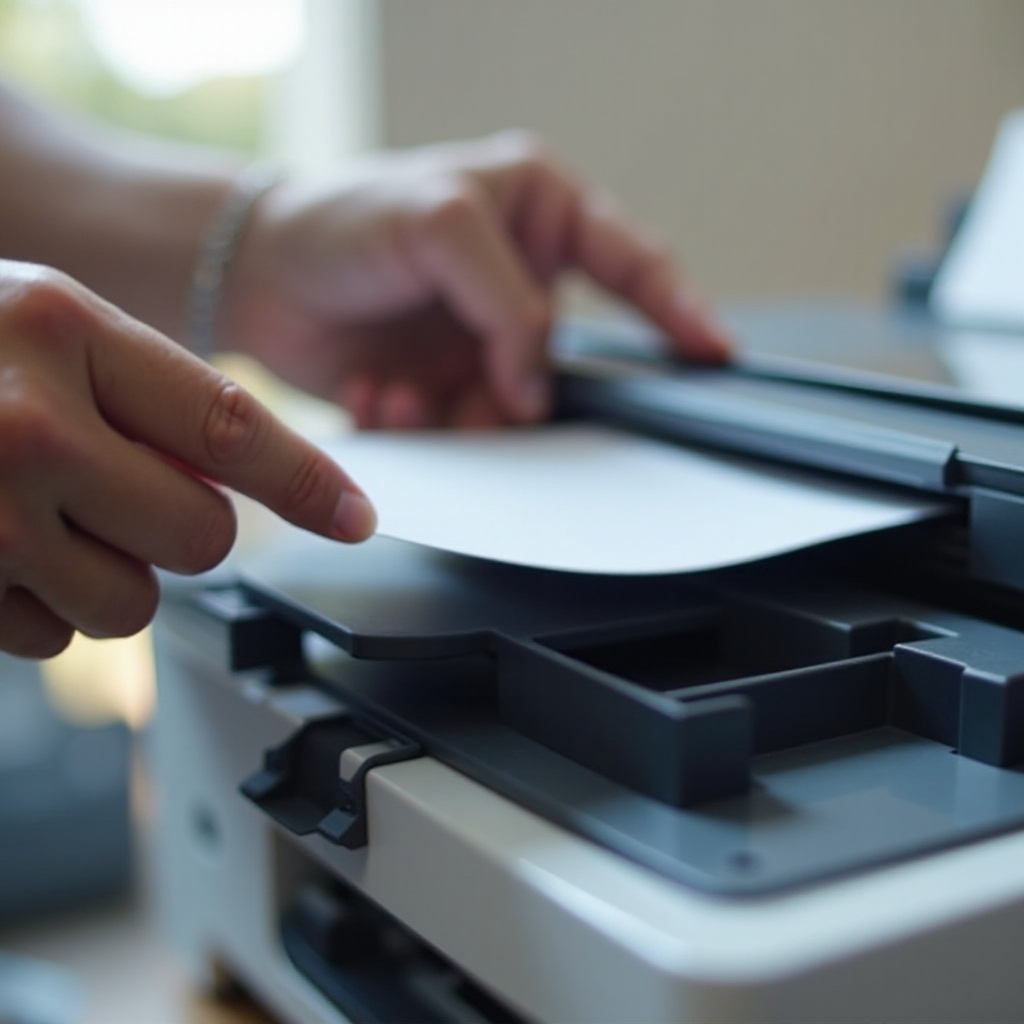
Improving Print Quality
If you’re experiencing poor print quality, the issue may stem from clogged nozzles or incorrect settings. Here are steps to improve print results:
- Cleaning Print Heads and Nozzles: Many Brother printers feature a manual cleaning function. Run this cleaning cycle via your printer’s settings to clear away any obstructions.
- Adjusting Print Settings: Access the print dialog box on your computer to select higher-quality settings. Remember to choose the correct paper type and size for the best output.
- Using Compatible Ink and Toner: To ensure optimal performance and avoid damage, only buy Brother-certified ink and toner products. Generic brands might not meet quality standards.
Having addressed print quality, turn your attention to connection issues that might disrupt your wireless printing experience.
Fixing Wireless Connectivity Issues
Losing connection to your home network can cause significant delays in your printing tasks. Here’s how to reestablish connectivity:
- Checking Wi-Fi Network Settings: Confirm your network is active and that your printer is connected to the correct Wi-Fi network.
- Reconnecting Printer to Wi-Fi:
- Navigate to network settings via the printer’s menu.
- Select your Wi-Fi network and enter the password to reconnect.
- Troubleshooting Network Problems: Restart both your router and printer, and investigate any firmware updates that could influence connectivity.
After resolving Wi-Fi issues, ensure your printer is running with the latest components.
Updating Printer Drivers and Firmware
Outdated drivers can lead to crashes and diminished performance. Keeping them updated is key for optimal functionality.
- Why Updates Are Crucial: Updates often address and fix bugs while enhancing overall performance.
- Step-by-Step Guide to Updating Drivers: Visit Brother’s official website to download the latest drivers for your model, then install them by following the provided instructions.
- Updating Printer Firmware: If your printer supports it, check for updates directly through the printer menu. Ensure an internet connection is available for the download.
Now, let’s explore how to handle error messages and other common printer issues.

Handling Common Error Messages
Encountering error codes can be frustrating, but each code usually indicates specific issues that can be resolved.
- Interpreting Error Codes: Consult your printer manual or Brother’s website to obtain explanations for the different codes.
- Steps to Resolve Common Errors:
- For paper jam errors, double-check entry points for trapped paper.
- For ink cartridge errors, ensure they are installed correctly and contain enough ink.
- Resetting Your Brother Printer: As a last resort for persistent issues, reset your printer to its factory settings. Access this functionality through the device’s settings menu.
With problems potentially resolved, consider efforts to maintain your printer’s efficiency and longevity.
Maintenance and Care Tips
Regular printer maintenance can prolong its life span and increase efficiency.
- Regular Cleaning Routines: Consistently clean both the exterior and interior to prevent dust accumulation.
- Scheduled Maintenance Checks: Perform monthly inspections for any signs of wear, especially on moving components.
- Using Brother-Compatible Products: Opt for Brother-approved cleaning supplies and products to ensure optimal performance.
Finally, if you’ve explored all available solutions and issues persist, it’s time to seek expert assistance.
When to Contact Professional Support
Some problems require the expertise of professionals and may be beyond the scope of DIY fixes.
- Recognizing Issues Beyond DIY Fixes: If issues continue after all troubleshooting attempts, consider reaching out for professional help.
- How to Reach Brother Support: Access Brother’s website for their contact options, which include email, chat, and phone support.
- Warranty and Service Options: If your printer is still covered by warranty, explore your options for repairs or replacement.
Conclusion
By understanding how to efficiently troubleshoot and maintain your Brother printer, you can avoid unnecessary downtime and expenditures. With consistent care, you can ensure your device remains functional and reliable for an extended period.
Frequently Asked Questions
How do I reset my Brother printer?
Navigate to the settings menu on your printer, select ‘Initial Setup,’ and choose ‘Reset.’ Follow the on-screen instructions.
What should I do if my printer keeps disconnecting from Wi-Fi?
Ensure your router is functioning effectively, place your printer closer to it, and avoid using too many devices on the same network.
How can I improve the print quality of my Brother printer?
Regularly clean the print heads, use high-quality ink and paper, and adjust your print settings to achieve better results.