

 By
By Introduction
The vertical bar on Mac, widely known as the Dock, is central to navigating and managing your applications efficiently. It’s not just a row of icons but a pivotal tool that facilitates quick access to frequently used applications and documents. By effectively utilizing the Dock, users can streamline their workflow, making interactions smoother and more productive.

Understanding the Vertical Bar on Mac
Grasping the basic components and operations of the Dock is crucial for maximizing its utility.
-
What is the Vertical Bar?
The Dock is a customizable taskbar located typically at the screen’s bottom but can also be repositioned to either side. It offers shortcuts to your apps, documents, and system folders for quick execution and access. -
Key Features and Functions
The Dock enhances your Mac experience by providing a central location for applications that are frequently launched. Icon animations help signal application launches or updates. -
Terminology and Symbols
Understanding that a small dot beneath an application icon indicates the application is currently open is essential. Recognizing these symbols helps distinguish between open and closed applications quickly.
This foundational knowledge paves the way for more advanced customization.
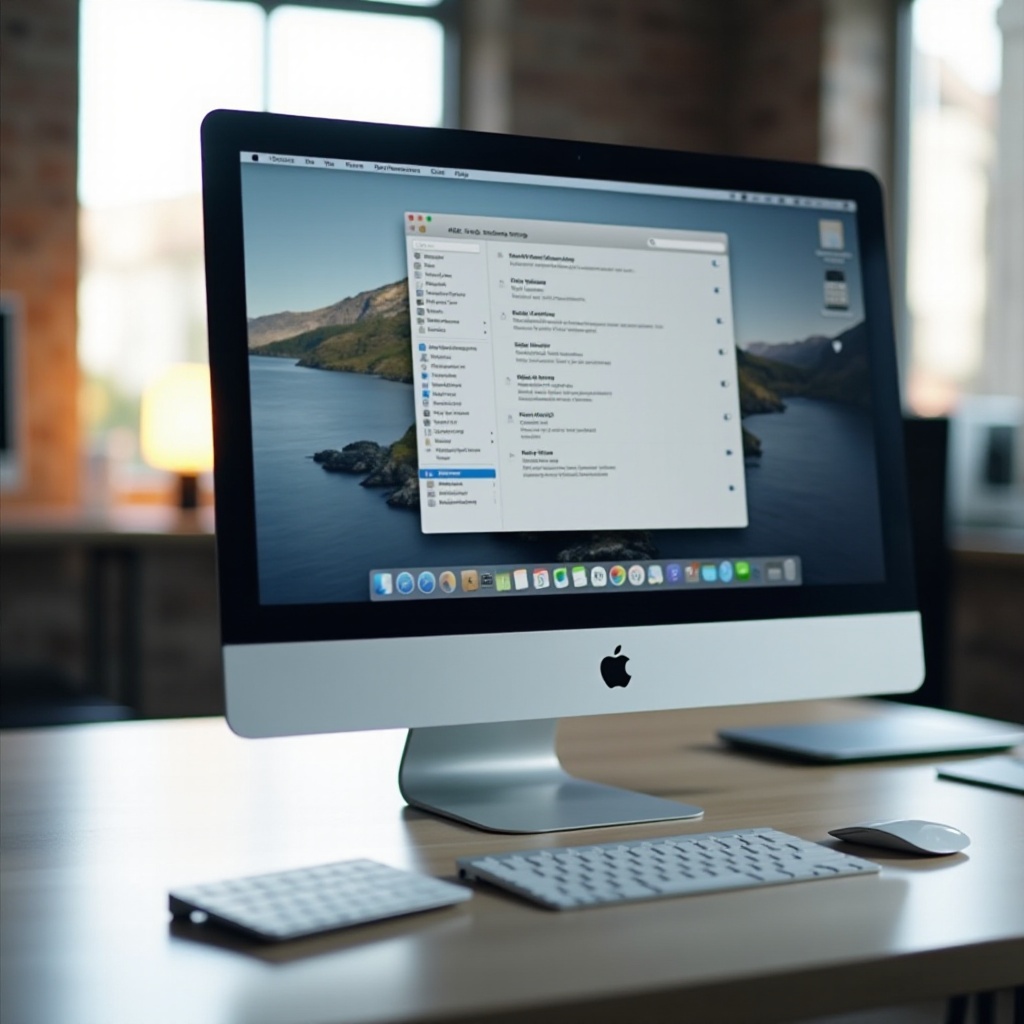
Customizing Your Vertical Bar
Tailoring the Dock to fit personal preferences can dramatically enhance your efficiency.
-
How to Add and Remove Items
To customize the Dock, drag items like applications or folders directly from Finder into the Dock. To remove items, drag them out until a ‘remove’ icon appears. -
Personalization Options for Productivity
Navigate to System Preferences > Dock & Menu Bar to adjust the size, position, and animation effects of the Dock, making it more conducive to your workflow. -
Using Third-Party Apps for Enhanced Customization
For those seeking advanced customization, applications such as uBar or cDock allow unparalleled personalization, including theme changes and unique app integrations.
Effective customization aligns your workspace with your tasks, laying the groundwork for addressing any issues you might encounter.
Troubleshooting Common Issues
While the Dock is generally reliable, users may face occasional glitches.
-
Identifying Common Problems
Problems such as the Dock disappearing or application icons becoming unresponsive can disrupt workflow. -
Basic Troubleshooting Steps
- Restart the Dock process by opening Terminal and entering ‘killall Dock’. This often resolves minor issues.
-
For icons that become unresponsive, a system restart or a Force Quit of the problematic application often restores functionality.
-
Advanced Solutions for Persistent Issues
Should these basic measures fail, resetting the Dock preferences might be necessary. This can be achieved by entering ‘defaults delete com.apple.dock’ followed by ‘killall Dock’ in Terminal, which resets the Dock to its default state.
Through effective troubleshooting, users can maintain a seamless desktop environment, facilitating a focus on productivity enhancement techniques.
Enhancing Productivity with the Vertical Bar
With the Dock functioning optimally, users can seek to further boost their productivity.
-
Organization for Quick Access
Arrange icons by frequency of use for efficient access. Group similar applications together to streamline task execution. -
Using Shortcuts Effectively
Make use of Mac shortcuts such as Command (⌘) + Tab for a quick app switch, and Command (⌘) + Option + D to toggle the Dock’s visibility. -
Visual and Accessibility Customizations
Adjust color settings and contrast through System Preferences for better visibility, tailoring the Dock to cater to diverse accessibility needs.
Implementing these strategies allows the Dock to function as a powerful tool for maximizing productivity.
Conclusion
The vertical bar or Dock on a Mac holds the potential for significantly enhancing user interaction. Understanding and customizing it to fit individual needs can simplify navigation, while regular troubleshooting ensures its reliability. By incorporating organization and accessibility tips, users can fully harness the Dock’s capabilities and boost their productivity, making their Mac experience more effective and enjoyable.
Frequently Asked Questions
How do I customize the icons on my vertical bar on Mac?
To customize icons, drag apps or files directly to rearrange them or remove them by dragging them out of the Dock.
What should I do if my vertical bar disappears?
If your Dock disappears, restart it by opening Terminal and typing ‘killall Dock’, then press Enter.
Are there any third-party apps recommended for managing the vertical bar?
Yes, third-party apps like uBar and cDock are great for custom themes and enhanced management, offering features absent in the default settings.