

 By
By Introduction
The ability to print directly from your devices is increasingly important, especially when using iPads. As more people rely on these tablets for daily tasks, seamless printing has become an essential feature. Epson printers, known for their reliability, provide several options for wireless printing. This guide will walk you through connecting your iPad to an Epson printer so you can effortlessly print documents and images.
Understanding Your Devices
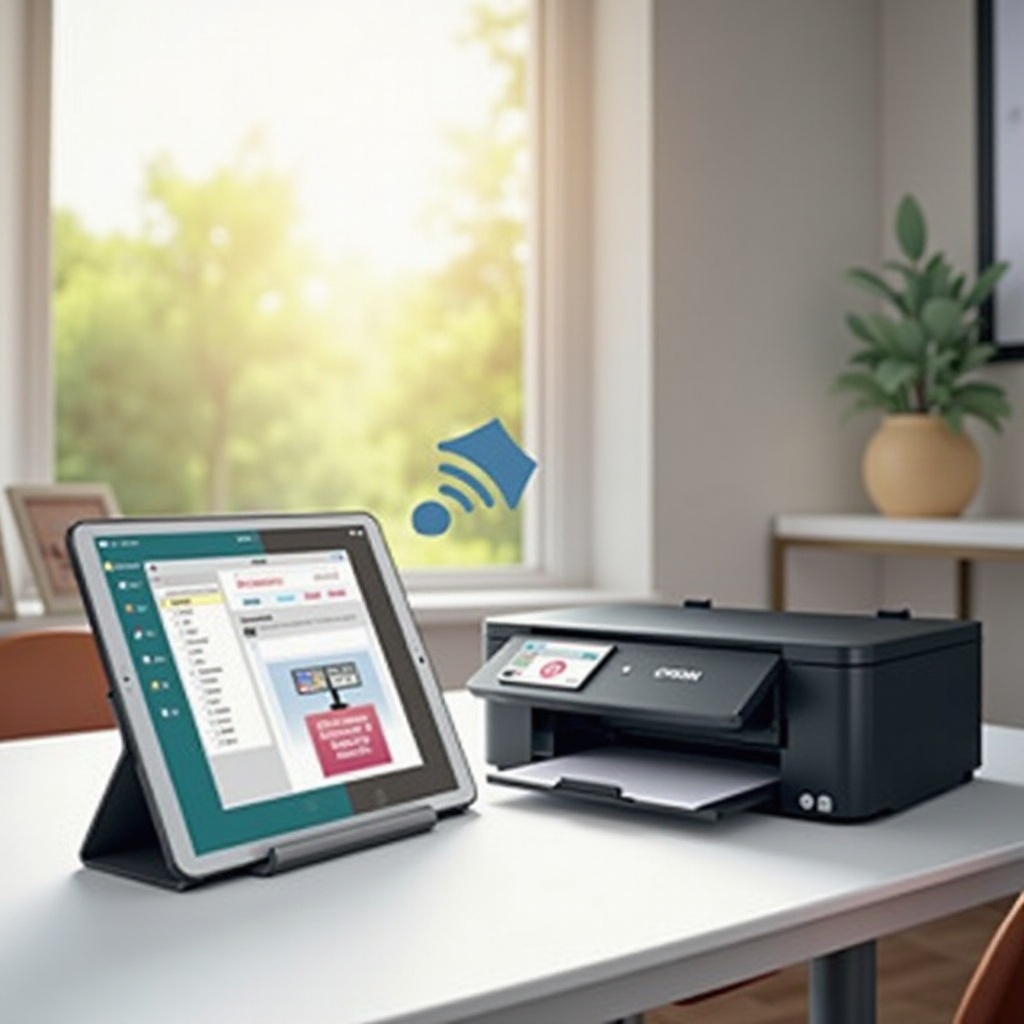
Before getting started, assess the compatibility between your iPad and Epson printer. Not all Epson models support wireless printing, so ensure yours does. Most modern Epson models such as the EcoTank, Workforce, and Expression series are designed for easy connectivity. Also, update your iPad to the latest iOS version to prevent any connectivity issues. With compatible devices, you are set to move forward with the setup.
Setting Up Your Epson Printer
To prepare your Epson printer for use, connect it to your Wi-Fi network:
1. Plug in your printer and power it on.
2. Navigate to the printer’s setup menu using its control panel.
3. Select the ‘Network’ settings, then choose ‘Wireless Setup Wizard.
4. Follow the prompts to locate and connect to your Wi-Fi network, entering the password if necessary.
Ensuring your printer’s firmware is current is also essential. Check Epson’s website for the latest updates, which can often be installed directly through the printer’s setup menu. This preparation helps prevent technical issues when printing from your iPad.
Using AirPrint with Epson Printers
AirPrint streamlines wireless printing from Apple devices like iPads, without needing additional drivers. Here’s how to use it:
1. Ensure your iPad and Epson printer are on the same Wi-Fi network.
2. Open the document or image you wish to print.
3. Tap the ‘Share’ icon, then select ‘Print.
4. Choose your Epson printer from the list of available printers.
5. Adjust your print settings as needed, and tap ‘Print’ to complete the process.
By mastering AirPrint, you enhance your ability to print quickly and efficiently directly from your iPad.
Exploring the Epson iPrint App
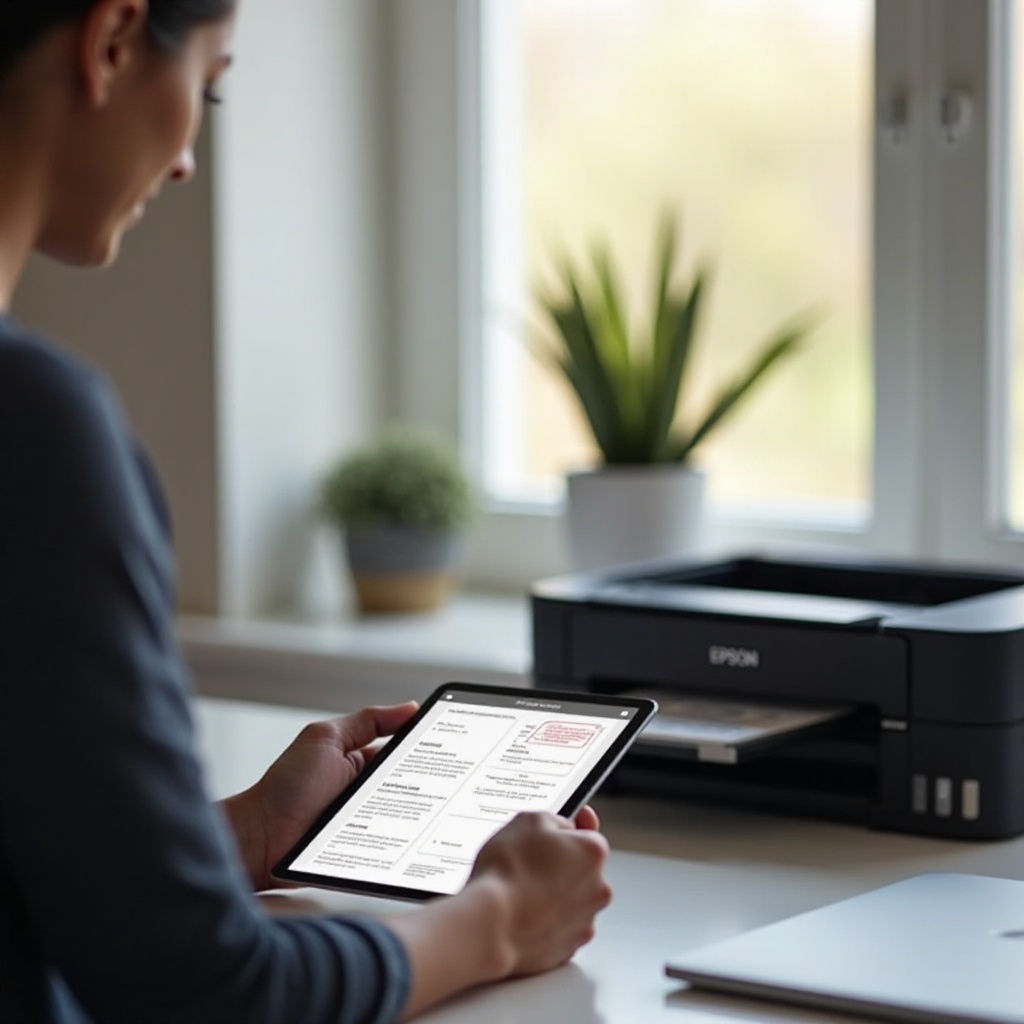
For added control and functionality, the Epson iPrint app offers a robust alternative to AirPrint:
1. Download and install the Epson iPrint app from the App Store.
2. Open the app and select ‘Printer is not selected’ to choose your device.
3. Use the app to select files, adjust print settings, and monitor print status.
This app allows users to perform more detailed management of their printing tasks, offering options like print preview, different photo layouts, and more.
Troubleshooting Common Issues
Inevitably, technology encounters hitches. Here are solutions to common problems:
– Connection issues: Ensure your Wi-Fi is stable and both devices are connected to the same network.
– Printer not found: Check that the printer is online and not in sleep mode. Restart both devices.
– Print quality issues: Perform a nozzle check via the printer’s maintenance menu, and ensure paper and ink levels are adequate.
Anticipating these issues allows for quick resolution, ensuring your printing tasks remain uninterrupted.
Additional Printing Tips
Enhancing the print quality from your iPad often involves tweaking a few settings:
– Image quality: Use high-resolution images for crisp prints.
– Paper setting: Match the paper type with the printer’s settings.
– Layout preferences: Use apps for creating various print layouts.
These adjustments improve print outcomes, delivering professional-quality pages each time.
Conclusion
This comprehensive guide demystifies the process of printing from an iPad to an Epson printer. By grasping each step—from setup to using AirPrint and exploring the Epson iPrint app—you ensure printing becomes a seamless extension of your digital life. Future printing tasks should now be straightforward and integrated into your workflow.
Frequently Asked Questions
How can I ensure my Epson printer is AirPrint-compatible?
Check the printer’s specifications in the manual or on Epson’s website. Most new models support AirPrint.
What should I do if my iPad doesn’t detect the Epson printer?
Verify both devices are on the same Wi-Fi network. Restart both the iPad and printer to refresh connections.
Are there any other apps besides Epson iPrint for additional functionality?
Yes, apps like Printer Pro and PrintCentral offer alternative printing solutions with varied features.