

 By
By Introduction
Swollen batteries in HP laptops can lead to severe safety risks and performance issues. Whether caused by overcharging, aging, or manufacturing defects, battery swelling needs immediate attention. This comprehensive guide provides insights into the causes, risks, and safe handling methods. By following these guidelines, you’ll be prepared to tackle the issue effectively and adopt preventive measures.
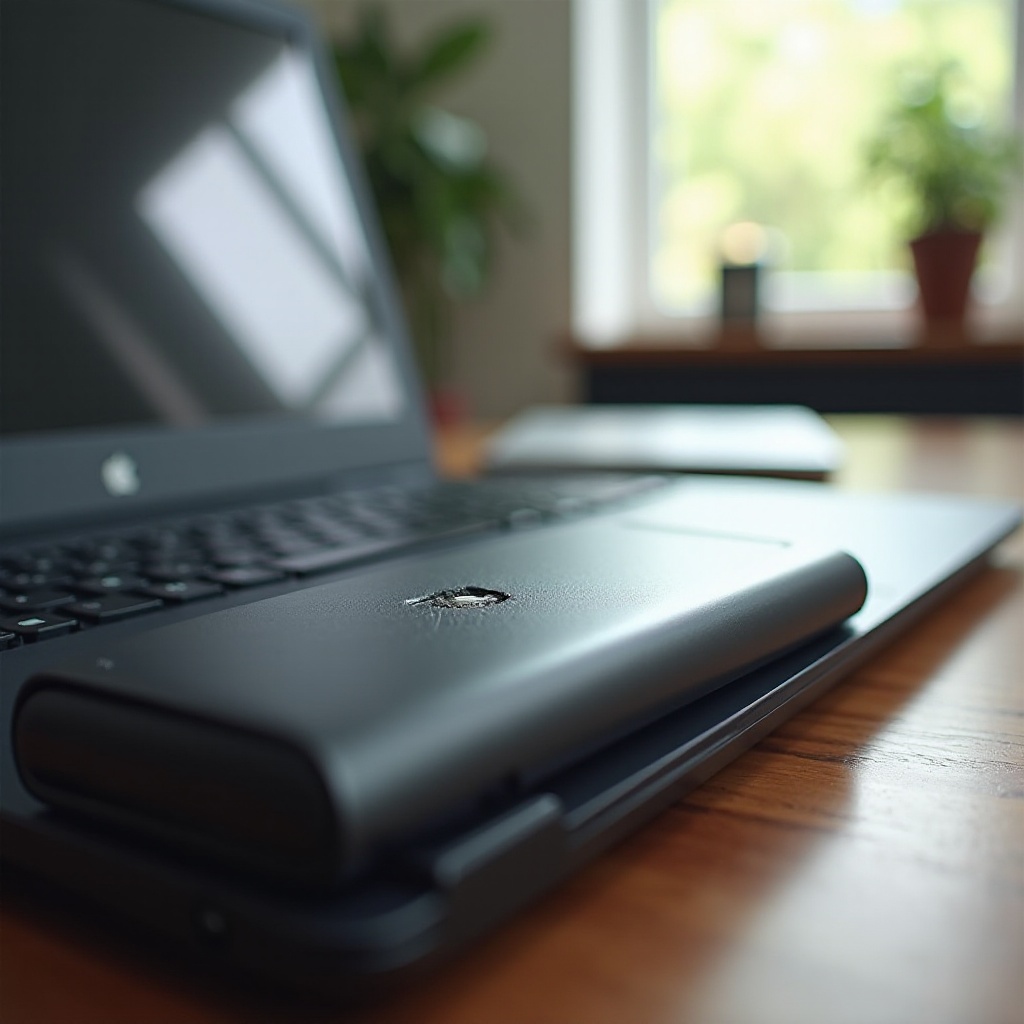
What Causes a Swollen Battery in HP Laptops?
Recognizing the factors that lead to battery swelling can help you prevent it.
Lithium-Ion Battery Chemistry
HP laptops utilize lithium-ion batteries, known for their efficiency but prone to swelling under specific conditions. Overcharging these batteries can generate excess heat, leading to chemical instability and result in off-gassing and swelling.
Common Triggers and Overcharging
Several factors contribute to battery swelling:
– Overcharging: Keeping your laptop plugged in continuously.
– Age: Degradation over time affects battery condition.
– Manufacturing Defects: Rare defects can cause premature swelling.
– Physical Damage: Damage to the laptop could affect battery integrity.
Understanding these causes is essential for addressing the problem and implementing effective solutions.
Recognizing the Signs of a Swollen Battery
Swift action requires identifying common symptoms of a swollen battery.
Visual Indicators
Look for signs like a distorted laptop casing or a lopsided laptop surface. If the laptop doesn’t sit flat, the battery may be swelling.
Performance Symptoms in Your HP Laptop
- Sudden shutdowns and reduced battery life.
- Keyboard or trackpad bulges indicating pressure from within.
- Unusual noises or clicks that could be due to internal strain.
These symptoms should prompt immediate measures to prevent potential dangers and damages. Understanding the associated risks further emphasizes the urgency of this issue.
Potential Risks and Safety Concerns
Ignoring a swollen battery can lead to serious consequences, including safety hazards.
Fire Hazards
A swollen battery presents a real fire risk. The internal chemicals can react unpredictably, potentially causing the battery to overheat or ignite.
Damage to Your Laptop
Physical swelling can lead to pressure on other components, resulting in further malfunctions or even a total failure of the device. Recognizing these reasons should prompt users to handle the issue promptly.

Immediate Actions to Take When You Suspect a Swollen Battery
If you suspect a swollen battery, act immediately to ensure safety.
- Turn off your HP laptop and disconnect it from power sources.
- Place your device in a cool, dry location and avoid using it.
- Do not puncture or exert pressure on the battery.
- Seek assistance from HP support or a certified technician.
These precautions minimize immediate risks while considering potential solutions for long-term safety.
How to Replace a Swollen Battery in an HP Laptop
Replacing the swollen battery might be the only solution for some.
DIY Replacement Steps
If you’re comfortable with tech repairs, you can replace the battery:
1. Gather tools (screwdrivers, replacement battery).
2. Carefully unscrew and open the laptop casing.
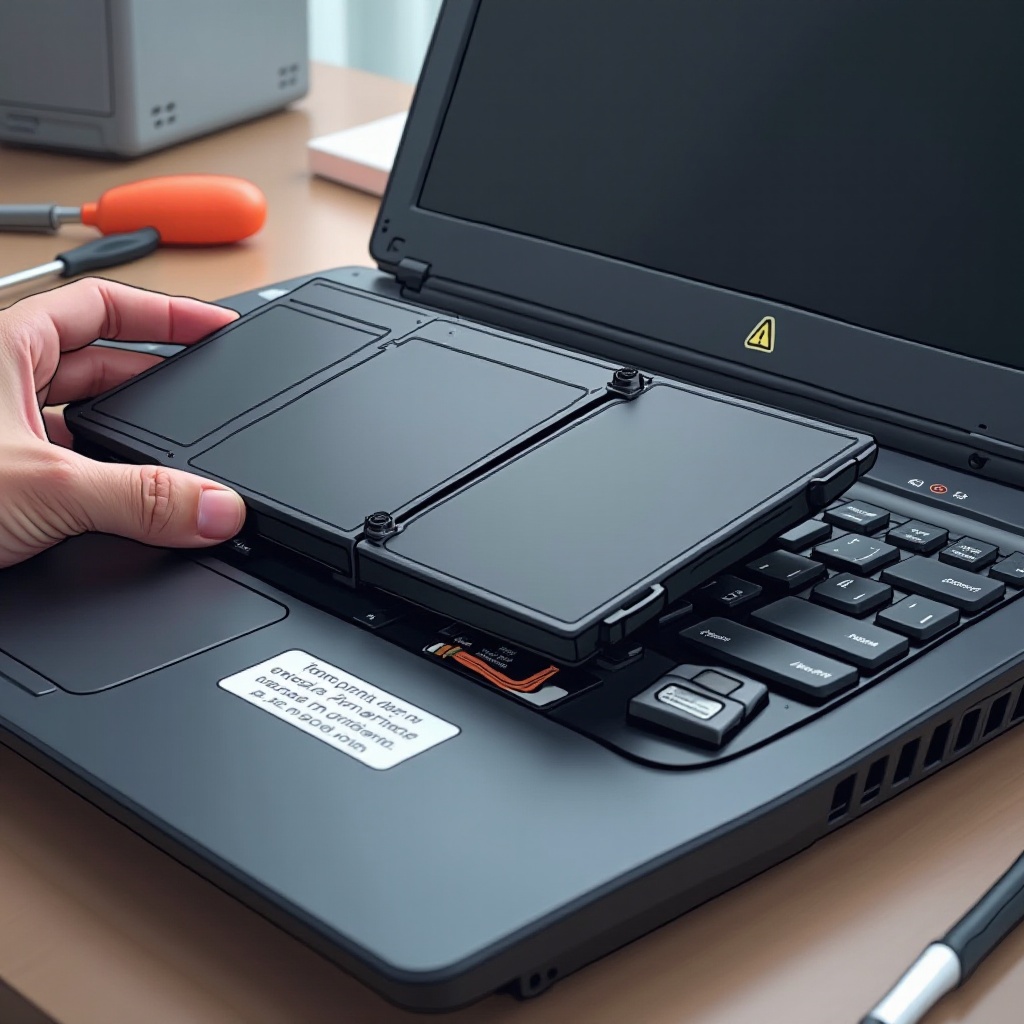
3. Disconnect and remove the old battery.
4. Install the new battery and reassemble the casing.
Tools You’ll Need
- Phillips and flathead screwdrivers.
- Anti-static wristband to prevent static discharge.
- Genuine replacement battery suitable for your specific HP model.
If you’re unsure, professional replacement might be a safer and more warranty-friendly option.
Choosing Professional Help
For those not comfortable with DIY solutions, professional service is advisable.
Benefits of Professional Repair Services
- Professionals ensure a precise and safe replacement process.
- They can identify and rectify additional issues in the laptop.
- Repairs often come with a warranty for the services provided.
Cost and Warranty Considerations
While professional repairs might be more costly, they guarantee correctness and protect your manufacturer’s warranty. This peace of mind can save you from potentially costly errors.
This option not only ensures the job is done correctly but also evaluates any other existing issues.
Preventing Battery Swelling in the Future
To prolong battery life and prevent recurrence, implement regular maintenance and charge practices.
Best Practices for Battery Care
- Regularly update your laptop software for optimal battery management.
- Avoid keeping the battery at full charge for long periods.
Proper Charging and Storage Tips
- Use only HP-certified chargers.
- Store your laptop in a temperature-controlled environment.
- Occasionally discharge the battery below 50% before recharging.
Implementing these tips enhances battery longevity, reducing risks of future swelling.
Conclusion
Addressing a swollen battery swiftly is critical to preventing safety hazards and further damage to your HP laptop. Recognizing these signs and taking appropriate actions ensures both your safety and the longevity of your device. Whether you choose a DIY approach or seek professional help, prioritizing battery health is vital to maintaining optimal laptop performance.
Frequently Asked Questions
What should I do immediately if my HP laptop battery is swollen?
Turn off and unplug your laptop. Contact a professional for safe battery removal and replacement options.
Can I continue to use my HP laptop with a swollen battery?
No, continued use poses significant safety risks, including potential fire hazards.
How do I properly dispose of a swollen laptop battery?
Take the battery to a certified electronic waste recycling center. Avoid disposing of it in household trash.