

 By
By Introduction
Windows 11 offers a sleek and modern operating system, yet many users find the default taskbar restricting in terms of customization. By replacing the taskbar, you can unlock greater personalization, improve productivity, and enhance your overall desktop experience. This guide explores the benefits of a taskbar replacement and provides a step-by-step approach to transform your Windows 11 workspace.
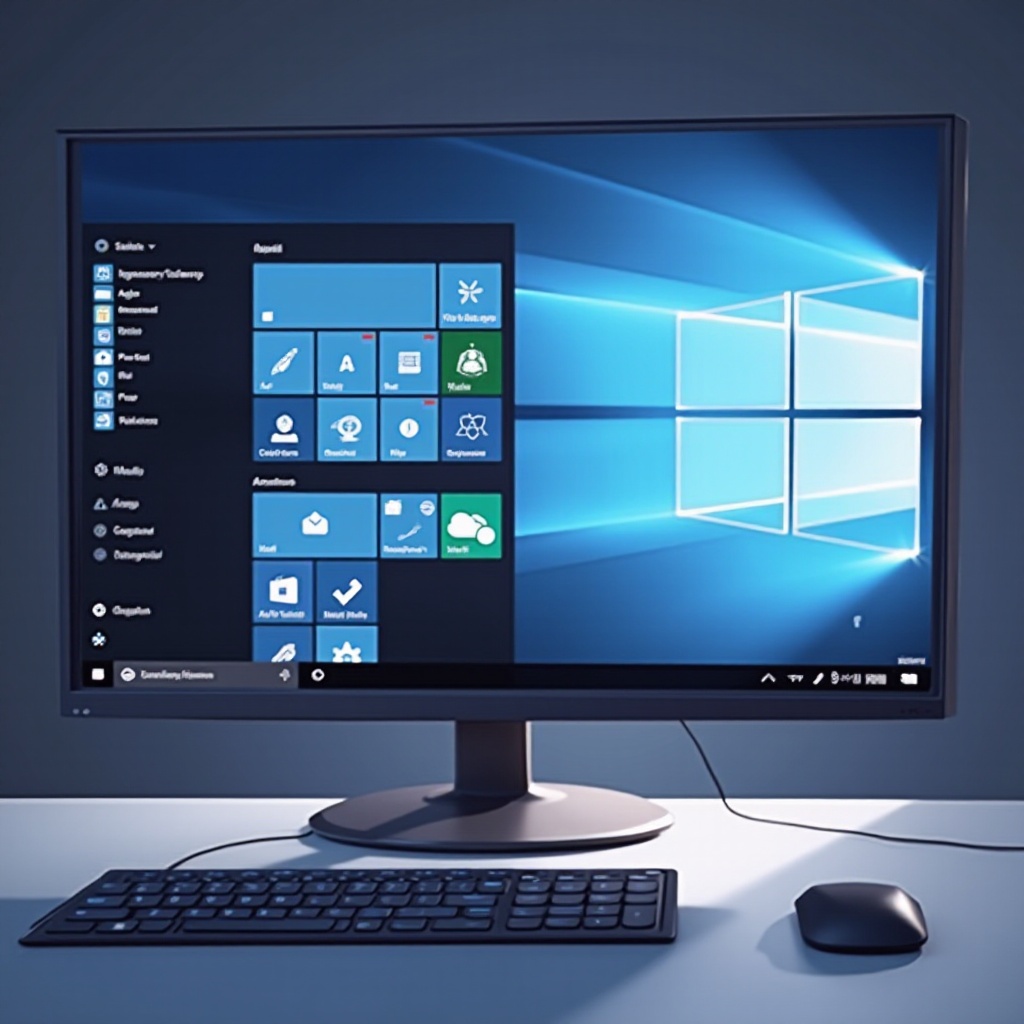
Why Consider a Windows 11 Taskbar Replacement?
Although the Windows 11 taskbar introduces fresh design elements, its customization constraints leave many users wanting more. Opting for a taskbar replacement allows you to truly personalize your desktop. By enhancing the taskbar, you can streamline your workflow, making multitasking smoother and more intuitive. Customizing the look and feel can also reflect your personal style, turning your workspace into a reflection of who you are. Combining functionality and aesthetics in your taskbar can significantly improve your day-to-day interactions with your PC.
Moving beyond aesthetics, a custom taskbar improves usability. By arranging application shortcuts and widgets to your liking, you maximize efficiency and convenience. These enhancements make navigating complex workflows simpler, ultimately boosting your productivity. By exploring the available replacement options, you can find a solution that best suits your needs.
Popular Taskbar Replacement Tools for Windows 11
Several robust tools can help you replace and customize the Windows 11 taskbar to fit your preferences:
-
StartIsBack++: Known for reintroducing the classic Windows 7 taskbar look, StartIsBack++ enables deeper customization by offering enhanced visual elements and additional taskbar settings.
-
TaskbarX: This tool lets you center your taskbar icons and offers a variety of animation effects. TaskbarX provides a polished, streamlined taskbar experience emphasizing both form and function.
-
RocketDock: A popular tool for creating a Mac-like dock in Windows, RocketDock focuses on efficient application launching and sleek appearances, offering drag-and-drop convenience.
-
Nexus Dock: With advanced customization features, Nexus Dock can transform your taskbar into a highly functional workspace, complete with live icon reflections and special effects to enhance your experience.
Selecting a tool depends on your priorities—whether that’s more aesthetic control, additional functionality, or enhanced performance. Evaluate each tool’s features and choose one that aligns with how you use your computer.
Step-by-Step Installation and Configuration
Once you’ve decided on a replacement tool, follow these steps to install and configure it:
-
Download the software from the official website of your chosen tool, ensuring compatibility with Windows 11.
-
Run the installer and follow the instructions. Allow any additional components if they provide enhanced functionality.
-
Configure the settings to align with your personal or professional needs, adjusting visual elements like icon size, taskbar transparency, and layout.
-
Explore additional widgets or plugins offered by the tool for advanced customization and improved taskbar capabilities.
-
Save your settings configuration to ensure quick restoration if needed or in the event of hardware changes.
This detailed setup ensures your new taskbar is optimized for both appearance and efficiency. Carefully configuring your taskbar replacement can greatly enhance your day-to-day workflow.
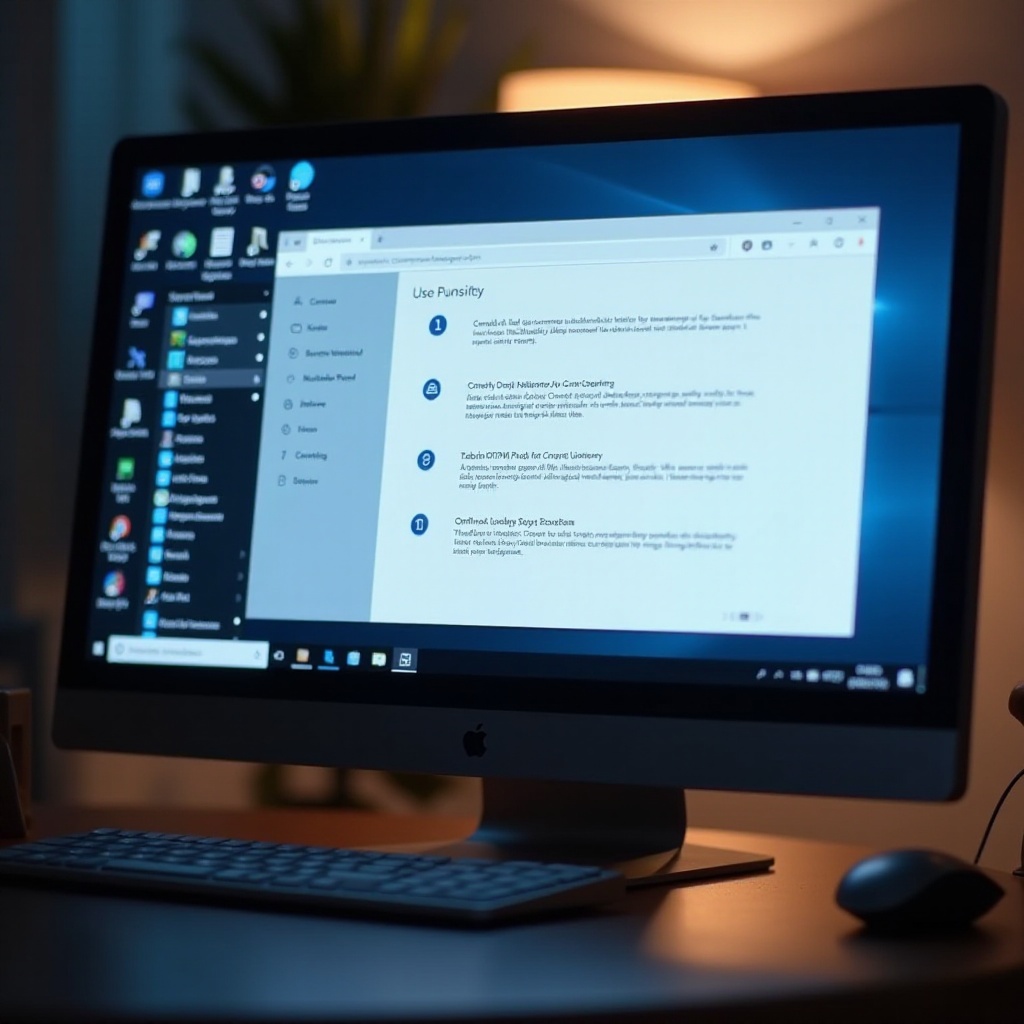
Maximizing Taskbar Functionality
To extract the most benefit from your new taskbar, delve into advanced tweaks and customization options:
-
Add useful widgets that give you instant updates on weather or system performance, right on your taskbar.
-
Implement keyboard shortcuts for quick access to frequently used applications. Well-configured shortcuts can transform how quickly tasks are completed.
-
Regularly revisit taskbar settings to adapt to any changes in workflow or personal preference. Understanding that your needs may evolve helps keep your system efficient.
Crafting a taskbar that aligns perfectly with your daily activities can significantly impact productivity as well as user satisfaction.
Troubleshooting Common Taskbar Replacement Issues
While installing taskbar replacement tools, you might encounter some technical challenges. Understanding common problems can help mitigate them efficiently:
-
Installation glitches may occur if your system doesn’t meet tool requirements. Confirm compatibility and check permissions before attempting a reinstall.
-
Compatibility issues can arise from conflicting software. Frequently updating your tools and OS helps maintain stability and ensures new updates are applied correctly.
-
Performance lags might happen if certain functions consume too much power. Be mindful of features you enable and consider disabling unnecessary ones to improve efficiency.
Addressing these issues quickly helps maintain a smooth, functional environment and keeps your desktop at optimal performance.
Conclusion
Replacing the taskbar in Windows 11 can open up a world of customization that enhances not only visual appeal but also operational efficiency. By exploring tools like StartIsBack++, TaskbarX, and RocketDock, you enable deeper customization of your taskbar. Using this guide as a resource, you should confidently transform your desktop into a more personalized workspace, tailored to enhance your productivity and style.
Frequently Asked Questions
Are taskbar replacement tools safe for Windows 11?
Yes, they are generally safe when downloaded from reputable sources. Ensure you download from the official website to reduce risks.
Will replacing the taskbar affect my system performance?
Typically, it should not. Most tools are optimized, though performance may vary based on enabled features. Adjust settings if you experience lag.
Can I revert back to the default Windows 11 taskbar layout if needed?
Yes, most taskbar replacement tools offer an easy method to revert changes. Uninstalling the tool will also return the system to default settings.