

 By
By Introduction
Windows Spotlight is a wonderful feature of the Windows operating system, designed to delight users with fresh and captivating lock screen images. These visuals include stunning landscapes, architectural wonders, and close-ups of nature’s beauty, all curated by Microsoft to enhance your experience. Many of us find these images appealing enough to want them saved for personal use—the challenge lies in extracting them. This guide will walk you through locating, saving, and organizing Windows Spotlight images effortlessly.
What is Windows Spotlight?
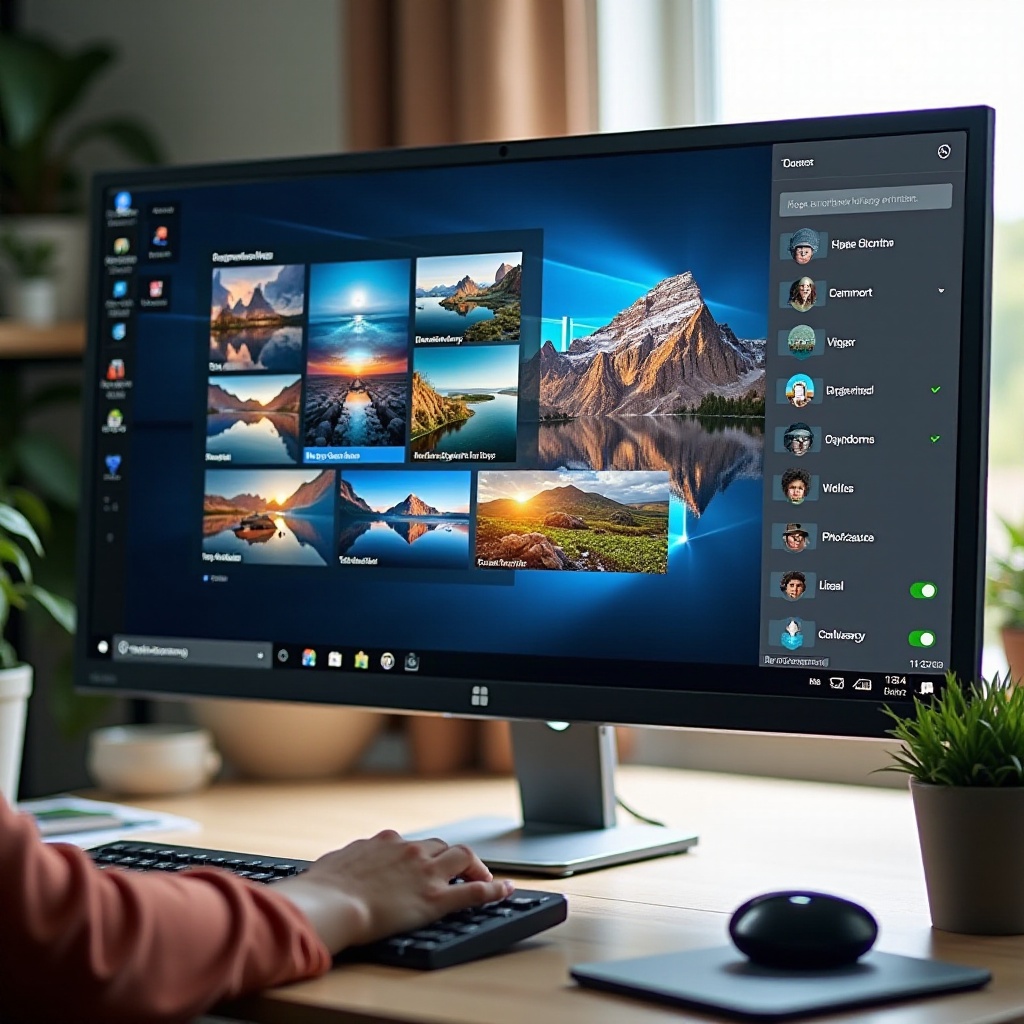
Windows Spotlight is available on Windows 10 and later iterations, handpicking beautiful images from Bing’s extensive library to display on your lock screen. Spotlight is more than just a visual treat; it provides a seamless interaction where the images change regularly, ensuring that your lock screen remains dynamic and engaging. Additionally, it might include helpful tips, news, or facts related to the images or Windows features themselves.
Many users don’t realize that these images are stored temporarily on their devices. While they aren’t openly accessible, with the right guide, you can uncover and preserve them for continued enjoyment.
Reasons to Save Windows Spotlight Images
Choosing to save Windows Spotlight images may be driven by a desire to use them as wallpapers, curate a collection of backgrounds, or even draw creative inspiration from them. The high-quality visuals serve multiple purposes—enhancing personal aesthetics or even aiding creative projects as a reference or motivational tool. Understanding how to save these images opens up opportunities to enjoy them endlessly across different platforms and devices.
To start, let us discuss the initial steps to find where these attractive images are stored on your computer.
Locating Windows Spotlight Images on Your Computer
Finding the depot for Windows Spotlight images requires a few steps since they are not stored in obvious locations on your system. Here’s how to detect these hidden gems:
- Open File Explorer: Access it from your taskbar or Start Menu.
- Enable Hidden Files: In the ‘View’ tab, tick ‘Hidden items’ to reveal normally concealed files and folders.
- Access the Assets Folder: Input the following path in the address bar:
C:\Users\[YourUsername]\AppData\Local\Packages\Microsoft.Windows.ContentDeliveryManager_cw5n1h2txyewy\LocalState\Assets
Replace ‘[YourUsername]’ with your actual username.
- Discern Image Files: Among the files lacking extensions are the Spotlight images.
Now, it’s about transforming these entities with none descriptive names or extensions into usable image files.
Step-by-Step Guide to Saving Windows Spotlight Images
Once found, the conversion of these files into regular images is quite straightforward:
- Copy Files: Highlight all files in the Assets folder, right-click, and select ‘Copy.
- Paste in a New Location: Navigate to a preferred folder on your computer, right-click, and choose ‘Paste.
- Add Extensions: Select all pasted files, right-click, then click ‘Rename.’ Append ‘.jpg’ to each filename to convert files to a recognizable format.
- View Files: Open the renamed files with any image viewer to reveal their splendor.
Successfully following these steps means having access to an array of stunning photos, perfect for viewing or further organization.
Organizing Your Saved Spotlight Images
Once saved, organizing these Spotlight images can greatly enhance how you utilize them:
- Create Folders by Theme: Segregate images into themes such as landscapes and architecture for easier access.
- Rename Files: Assign descriptive filenames that help quickly identify each image’s content.
These organization skills ensure your saved images are more accessible and useful for myriad personal or professional applications. The seamless rotation of these spectacular images prompts creative re-imagining beyond just a digital background.
Troubleshooting Common Issues
While saving Spotlight images is generally simple, you might encounter some hiccups along the way:
- Access Denied: Ensure you have administrator privileges to view hidden files and access protected folders.
- File Opening Errors: Ensure that ‘.jpg’ extensions are correctly added to each file.
Addressing these common issues keeps the process smooth, keeping your collection expanding regularly without frustration.
Conclusion
Windows Spotlight invites you to explore a world of astonishing imagery every day with spectacular photos that can be transformed for ongoing enjoyment. With the detailed steps provided, you are now equipped to find, save, and utilize these images effectively as part of your personal collection. Embrace this colorful canvas that Windows Spotlight offers, ensuring your digital life remains as vivid as the imagery it provides.
Frequently Asked Questions
Can I use Spotlight images as wallpaper?
Yes, you can set saved Spotlight images as wallpaper through your display settings after converting them to a viewable format.
How often does Windows update Spotlight images?
Windows regularly updates Spotlight images daily, refreshing the lock screen with new visuals.
Are there any copyright restrictions on using Spotlight images?
These images are intended for personal use. Distributing them commercially requires permission from Microsoft.