

 By
Introduction
Transferring files from a PC to an Android device efficiently can enhance productivity and ensure that you have all essential data at your fingertips. Whether transferring work documents, cherished photos, or other important files, it’s crucial to choose the method that best suits your needs. In this guide, we’ll explore various methods that simplify this process—helping you decide the most effective way to move your files seamlessly.
Method 1: USB Cable Transfer
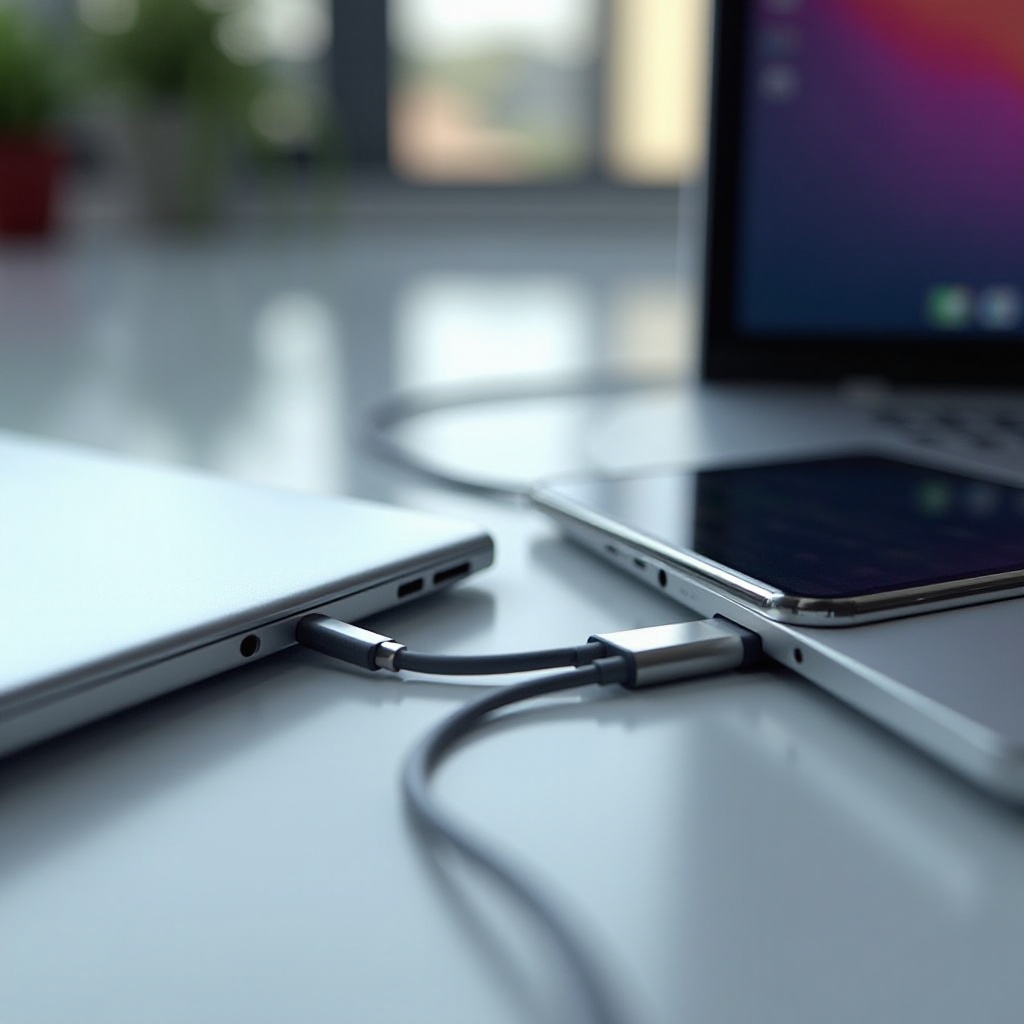
Using a USB cable to transfer files is often the go-to for many users due to its simplicity and speed. This straightforward approach requires just a few steps to get your files moving:
- Connect the Devices: Insert one end of the USB cable into your PC and the other into your Android device.
- Select Transfer Mode: On your Android device, you’ll be prompted to choose a USB mode. Opt for ‘File Transfer’ or ‘MTP’ (Media Transfer Protocol).
- Navigate to Device Storage: On your PC, open ‘This PC’ or ‘My Computer’ and locate your Android device among the drive listings.
- Drag and Drop Files: Select the files you want on the PC and drag them into the desired folders on your Android device.
USB transfers are ideal for large files because of their speed. This method, however, might face issues such as non-recognition by the PC or physical cable problems. Address these by checking the cable for damage or updating your computer’s drivers.
Method 2: Bluetooth Transfer
Opting for Bluetooth offers a wire-free file transfer solution. It is particularly useful when needing to transfer small files quickly:
- Activate Bluetooth: Enable Bluetooth on both the PC and the Android device through their settings menus.
- Pair the Devices: On the PC, navigate to Bluetooth settings and search for your Android device. Pair both devices, confirming the connection with any required passcodes.
- Send Files: Right-click on files ready for transfer, select ‘Send to’, and choose ‘Bluetooth Device’.
- Accept the File on Android: On your Android device, accept the file transfer request prompted in notifications.
While Bluetooth transfers lack the speed for larger files, the absence of cables and straightforward connectivity provide a hassle-free option for smaller files.
Method 3: Using Wi-Fi Transfer Apps
Wi-Fi transfer apps are an excellent choice for those who prefer not to rely on cables while benefiting from high-speed transfers:
- Download Transfer Apps: Install apps like AirDroid or SHAREit from the Google Play Store on your Android device.
- Connect to the Same Network: Ensure both PC and Android device are connected to the same Wi-Fi network to facilitate communication.
- Start the Transfer Process:
- Launch the app on both devices.
- Follow the app-specific instructions to pair and connect devices wirelessly.
- Choose files on your PC to be sent to your Android device.
Wi-Fi transfer apps are highly effective for bulk transfers, provided a stable and swift Wi-Fi network is available. This method seamlessly accommodates the need for wire-free flexibility.
Method 4: Cloud Storage Services
Cloud services present an accessible avenue for file transfer, significantly boosting convenience by providing access across multiple devices:
- Select a Cloud Storage Provider: Consider popular cloud services like Google Drive, Dropbox, or OneDrive for these purposes.
- Upload Files from Your PC: Drag and drop files into your cloud storage folder on your computer, facilitating easy cloud uploads.
- Retrieve Files on Android: Access and download the files from the cloud service app on your Android device wherever internet access is available.
Cloud storage is perfect for those who require constant file access from different locations. However, mind the potential limitations involving internet connectivity and storage capacity, which may impact your ability to use this method seamlessly.
Troubleshooting Common File Transfer Issues
Despite the wide array of transfer methods, problems can occur during the process. Connectivity glitches, file compatibility issues, or app-related troubles may halt your files in their tracks. Here are solutions to common issues:
- Connectivity Problems: Verify all device connections, checking for faulty USB cables or unstable Wi-Fi connections.
- File Compatibility: Ensure your files are in formats compatible with Android. Conversion tools can aid if a file format is not supported.
- App Errors: Resolve any application errors by updating or reinstalling the apps in use.
These solutions help in keeping your transfer activities smooth, maximizing the benefits these methods offer.
Conclusion
Understanding and selecting the right file transfer method can make moving files from your PC to an Android device an effortless task. Whether you prefer USB’s robust reliability, Bluetooth’s simplicity, the versatility of Wi-Fi apps, or the constant access provided by cloud storage, there’s a transfer solution to accommodate your needs. Adapting to these technologies not only enhances your efficiency but also integrates your digital devices more effectively into your daily life.
Frequently Asked Questions
Is it possible to transfer files without internet?
Yes, both USB cable and Bluetooth methods do not require internet, enabling offline transfers.
What is the fastest method to transfer large files?
Using a USB cable is generally the fastest method for transferring large files due to its stable and direct connection.
How can I ensure my files are secure during transfer?
Use encrypted apps, avoid public Wi-Fi, and update security protocols on all devices to protect your files during transfer.