

 By
Notifications on your Windows PC can either keep you informed or disrupt your workflow. Many users are seeking ways to manage these interruptions effectively. Fortunately, Windows offers several options to customize and control notifications. In this guide, we will cover strategies to turn off notifications, ensuring your focus remains uninterrupted.
Introduction
Windows notifications alert you to updates, messages, and app activities. Although helpful, they can become overwhelming and divert attention from important tasks. This guide explores how to turn off Windows notifications, focusing on various methods to customize your experience and only receive alerts that matter to you.
Understanding Windows Notifications
Windows notifications can come from applications, system updates, or security alerts. Knowing their sources helps you manage them better.
- Applications: These include notifications from messaging apps and social media updates.
- System Alerts: Updates and prompts about your system’s performance fall into this category.
- Security Messages: Alerts about potential threats or recommended actions to safeguard your system.
With an understanding of notification types, you can proceed to customize settings as desired.
Accessing the Notifications & Actions Settings
Locate the Notifications & Actions settings to start managing alerts:
- Click on the Start Menu and select the Settings gear icon.
- Select System in the Settings window.
- Click on Notifications & actions in the left panel.
From this section, you can control system-wide notifications or adjust them for individual applications according to your preferences.
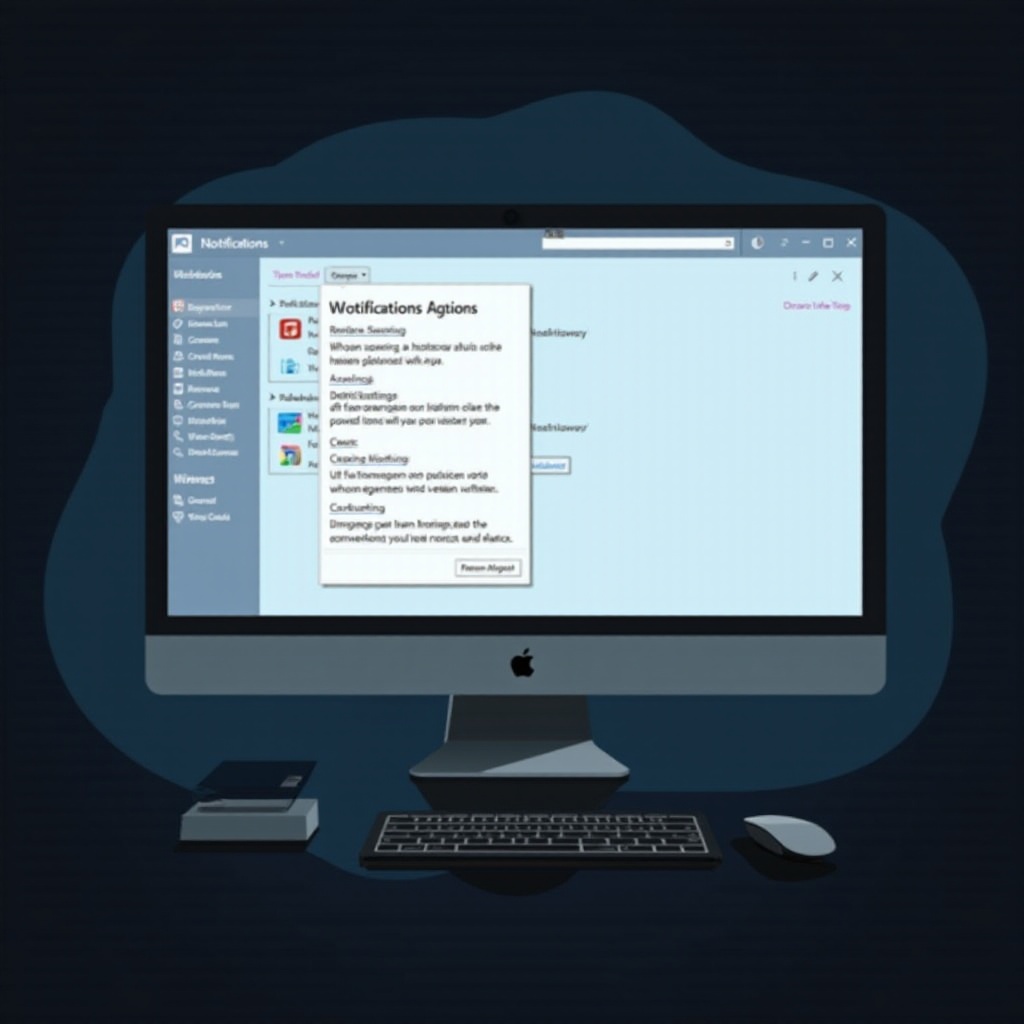
Disabling Notifications for Individual Apps
If you find specific apps to be particularly disruptive, you might want to disable their notifications individually. Here’s how:
- Go to Settings > System > Notifications & actions.
- Scroll to Get notifications from these senders.
- Toggle off the switch next to any app to stop its notifications.
This method allows you to keep receiving alerts from essential apps while silencing the less important ones.
Managing System Notifications
System notifications can be managed for less interruption by turning off non-critical alerts. Here’s how:
- Visit Settings > System > Notifications & actions.
- Look for options like Show me the Windows welcome experience and Get tips, tricks, and suggestions as you use Windows. Turn these off.
These steps help suppress non-essential notifications and maintain your focus.
Utilizing Focus Assist to Control Notifications
For enhanced notification control, use Focus Assist, a feature that blocks unnecessary alerts based on your preferences or schedule.
Set up Focus Assist to suit your needs:
- Setting Up Focus Assist Priority List: Go to Settings > System > Focus Assist and select Priority only. Customize the list to include apps and contacts you want to hear from.
- Scheduling Focus Assist: Under the Automatic rules section, set quiet hours for when you prefer zero notifications.
- Turning on Focus Assist Automatically: Enable Focus Assist during specific activities like duplicating a display or playing a game.
Focus Assist offers a flexible way to block distractions while still receiving vital alerts.
Advanced Tips for Notification Management
Some advanced techniques can further enhance your control over notifications:
- Using Third-Party Tools: Programs like Quiet Hours provide additional notification management options.
- Automating Notification Settings: Consider using scripts or task schedulers to toggle notifications based on specific triggers or times.
By using these advanced tools, even power users can achieve the precise notification control they desire.
Conclusion
Taking charge of Windows notifications allows you to remain focused and boost productivity. By implementing the strategies discussed, you can control distractions, ensuring only essential alerts interrupt your activities. Customize your notification settings today for a more efficient Windows experience.
Frequently Asked Questions
How do I completely silence all Windows notifications?
To silence all notifications, go to ‘Settings > System > Notifications & actions’ and turn off ‘Get notifications from apps and other senders’.
Can I schedule quiet hours for notifications?
Yes, you can use Focus Assist to schedule quiet hours. Set up automatic rules in ‘Settings > System > Focus Assist’ for times you wish not to be disturbed.
What are the benefits of using Focus Assist over disabling notifications entirely?
Focus Assist selectively filters notifications, allowing you to block unnecessary alerts while still receiving critical updates, thus offering a balanced approach.